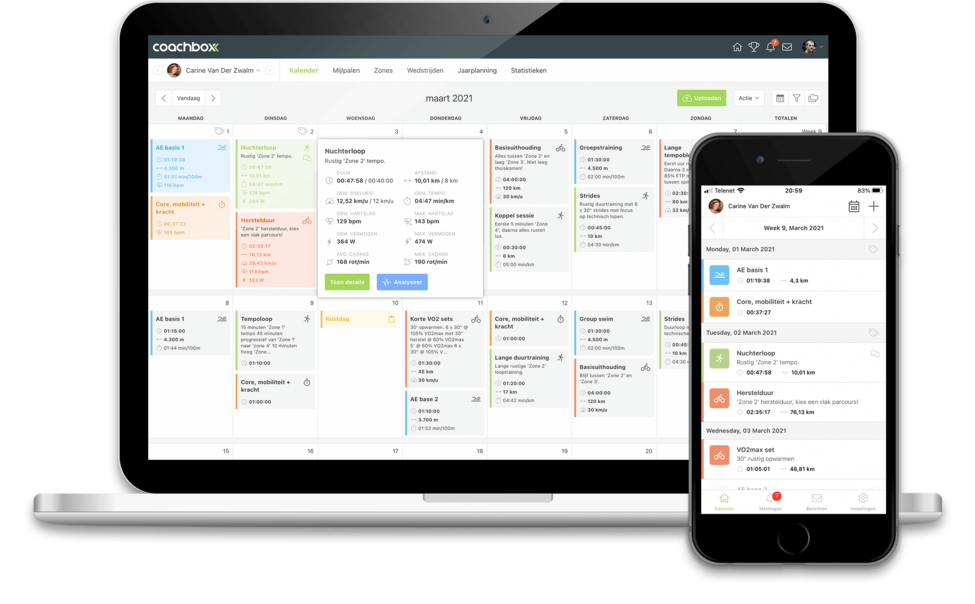
Visibility of Planned Workouts
In Coachbox you — as a coach — determine how far ahead an athlete can see their scheduled workouts. This visibility can be set globally for all your athletes, or you can override it individually per athlete.
This is useful when you plan far ahead for some athletes, while for others you prefer to only show the upcoming week.
Below you’ll find instructions on where to find these settings and how to manage them.
1. Set visibility via your global settings
You can define a default setting that applies to all your athletes.
How to do it:
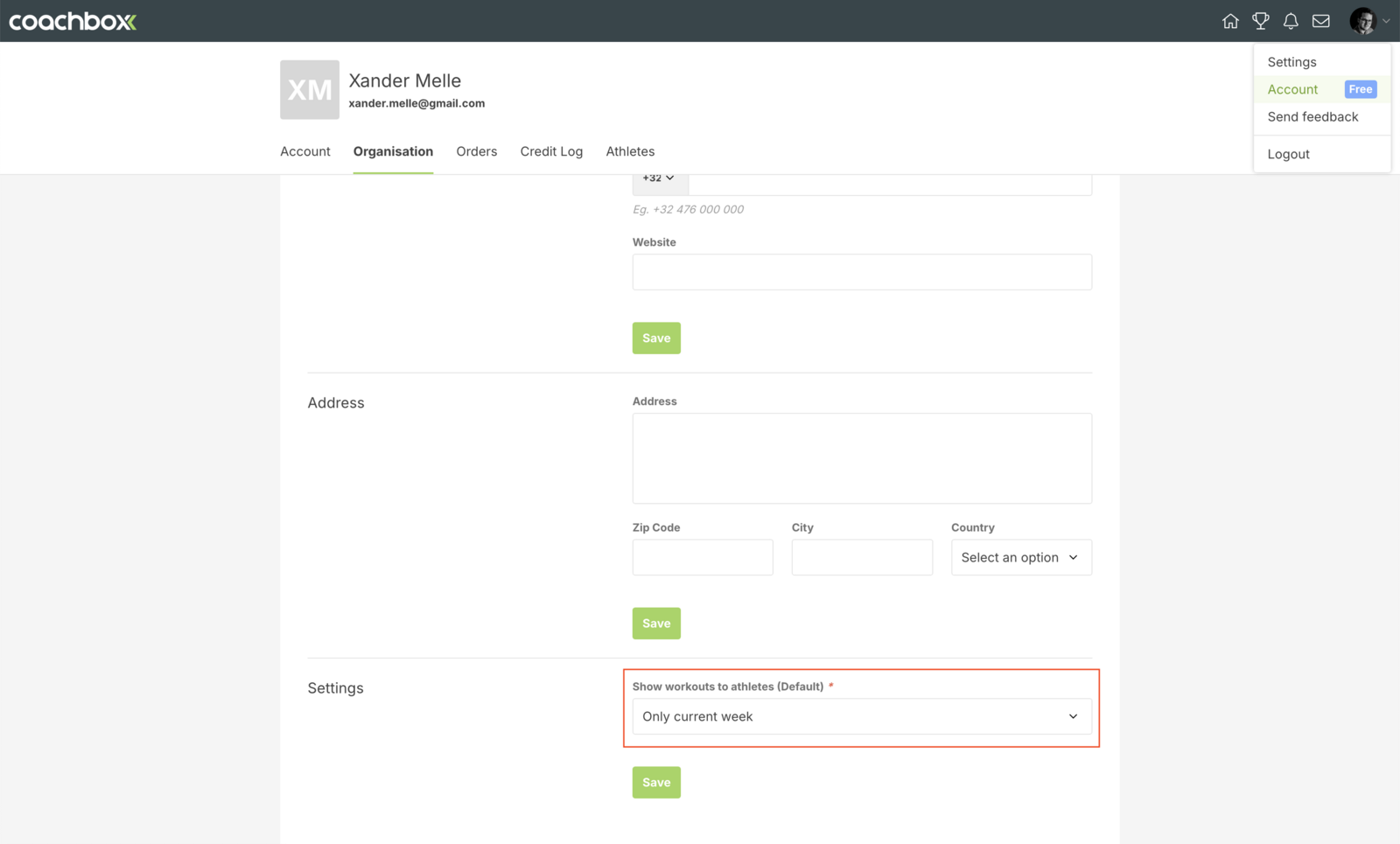
- Click on your profile picture or initials in the top-right corner and choose 'Account'
- Open the 'Organisation' tab
- Scroll down to the 'Settings' section
- Under 'Show workouts to athletes (Default)' select how many weeks ahead athletes may view their planned workouts (e.g. Only current week, 1 week ahead, …)
- Click 'Save' to apply your choice
This default will apply to all your athletes, unless you choose a different setting for a specific athlete.
2. Adjust visibility per athlete via their profile
If you want a different visibility for a specific athlete, you can change it directly in the athlete’s profile.
How to do it:
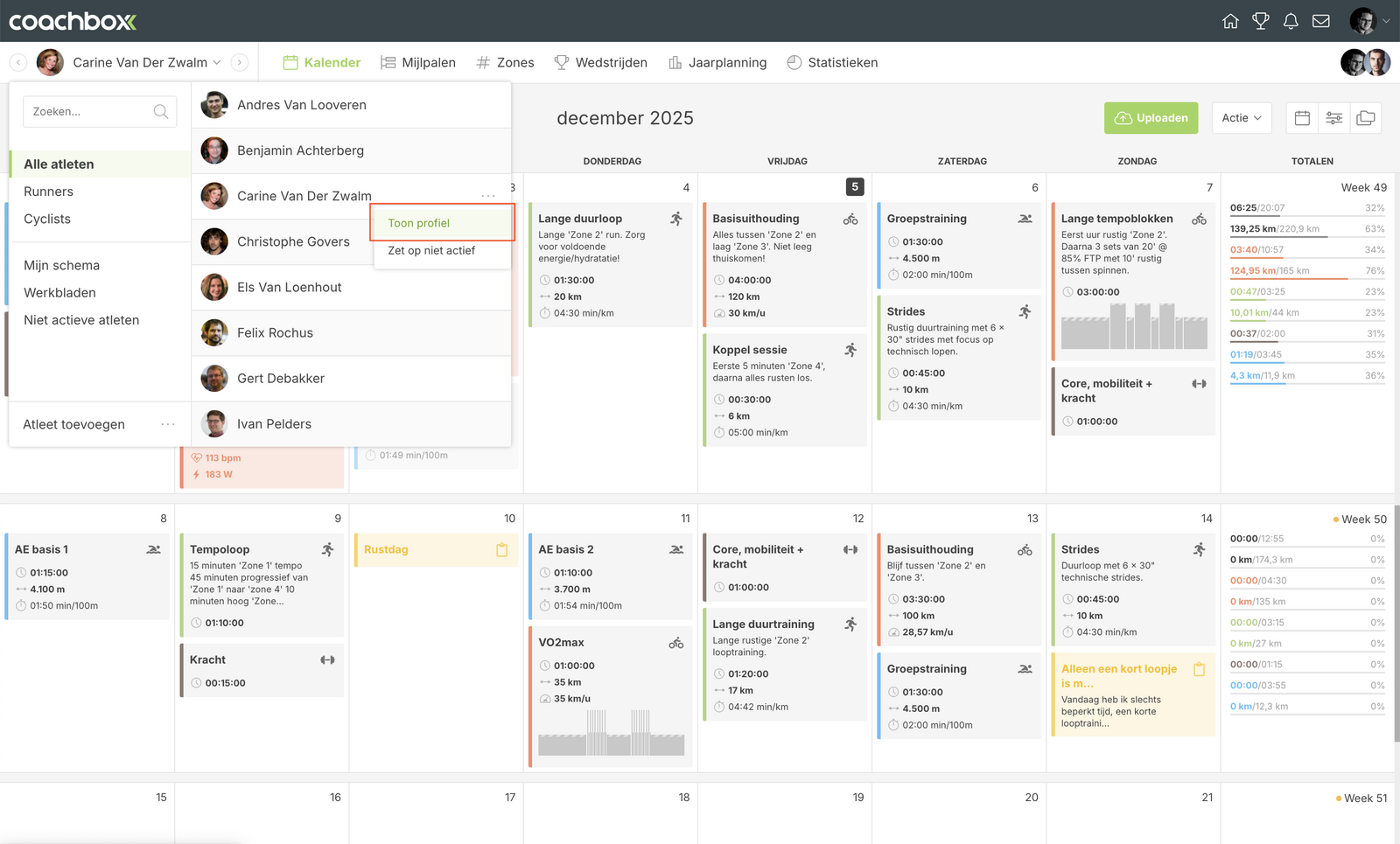
- Open the athletes selection panel
- Hover over the athlete’s name
- Click the 'Options' icon and choose 'Show profile'
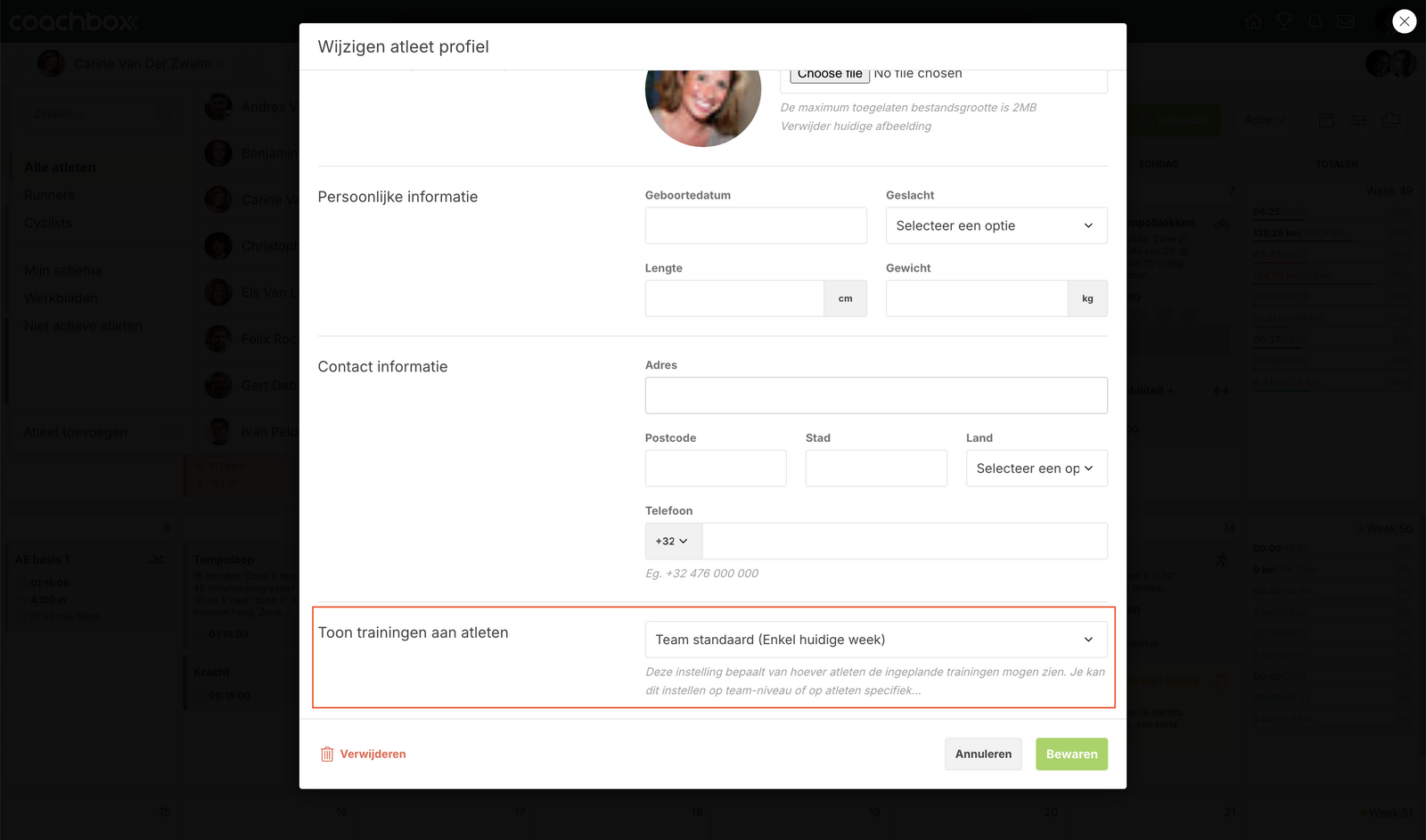
- Click 'Edit profile'
- Scroll down to the 'Show workouts to athlete' setting
- Choose how many weeks ahead this athlete may see their workouts
- Click 'Save'
This overrides the global setting for that particular athlete only.
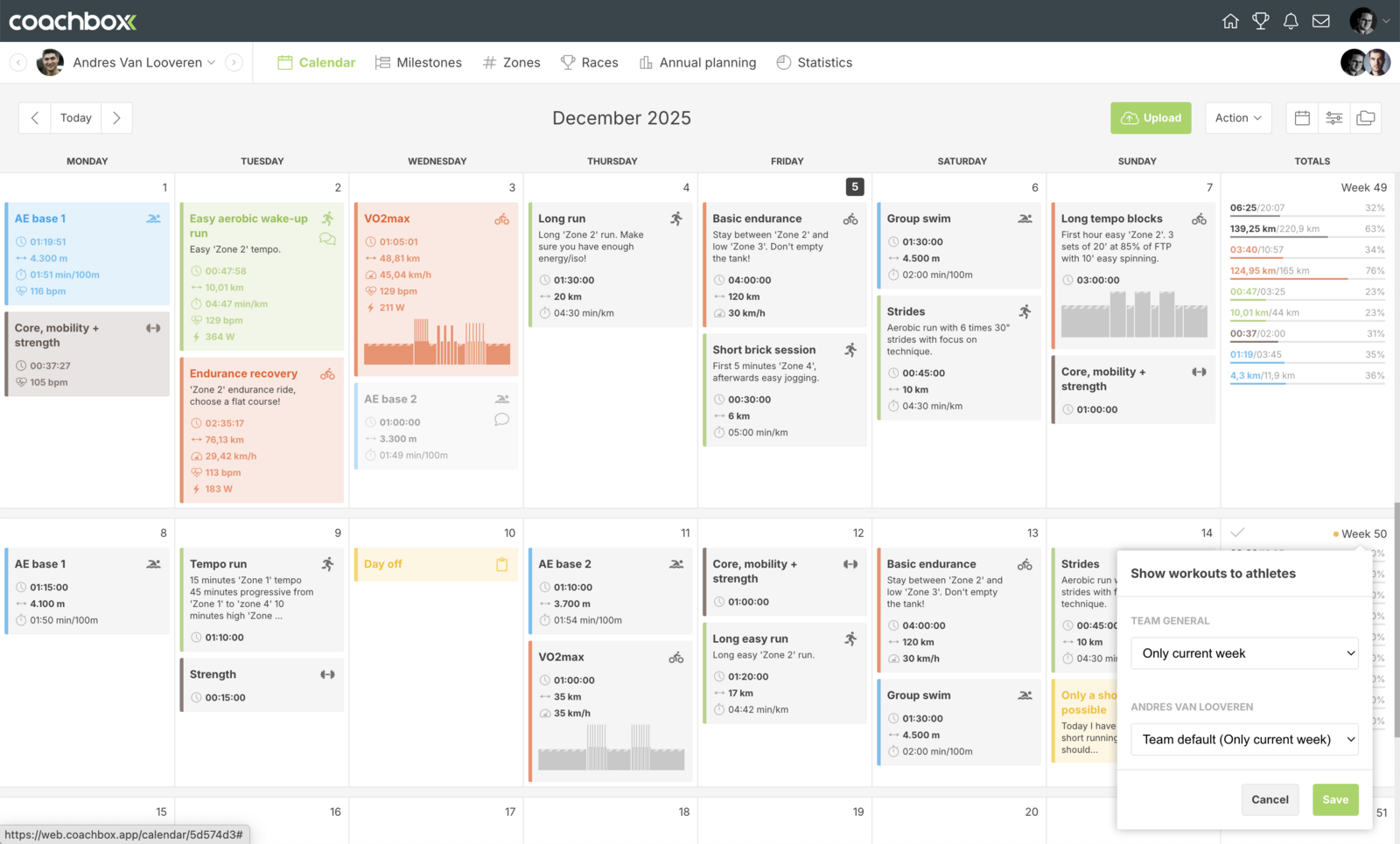
3. Adjust visibility via the orange “dot”-icon in the calendar
You can also quickly change an athlete’s visibility directly from the calendar view.
How to do it:
- Go to the athlete’s Calendar
- Click the 'orange dot-icon' to the right of the week number
- In the pop-up you will see:
- Team default → the global setting
- [Athlete name] → the individual setting
4. Adjust the visibility as desired
5. Click 'Save' to apply the change
This is the fastest way to change visibility for that athlete without going through the profile.
Important to know
- If an athlete has a personal setting defined, the global setting is no longer used for them.
- You can change the setting at any time; updates are applied immediately.